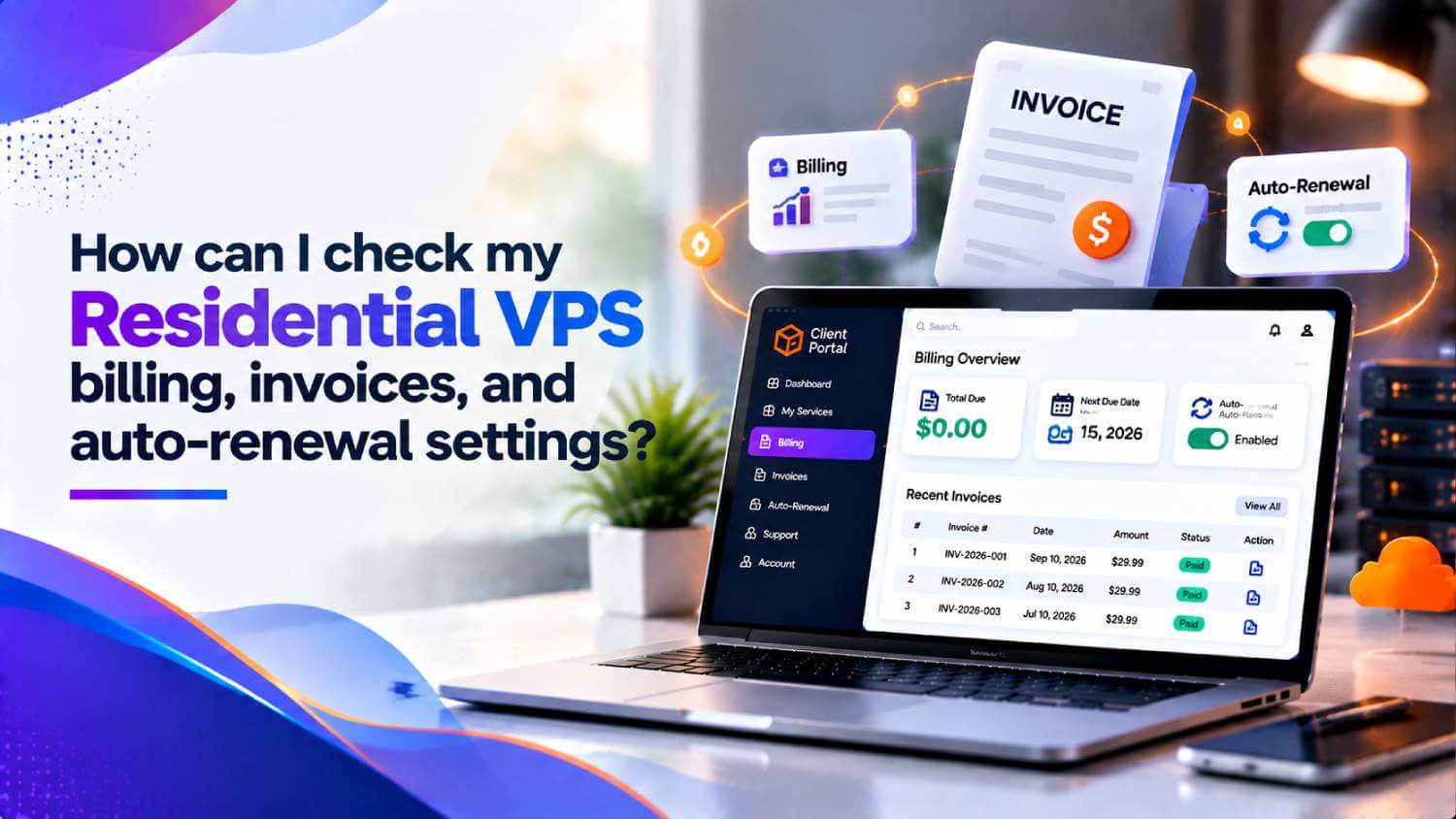
The Automation features of Residential VPS Service and Billing:
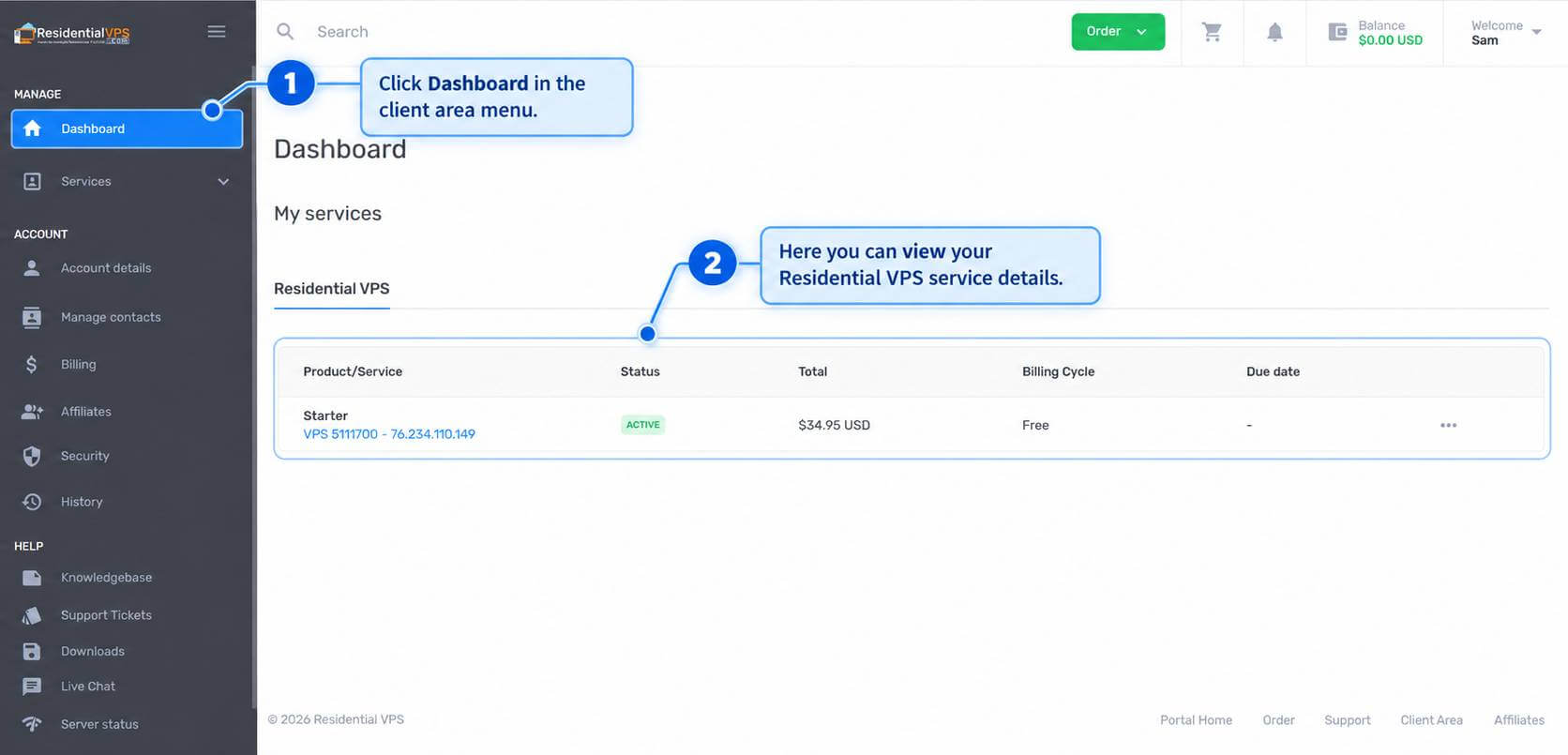
Step-1: Client Dashboard
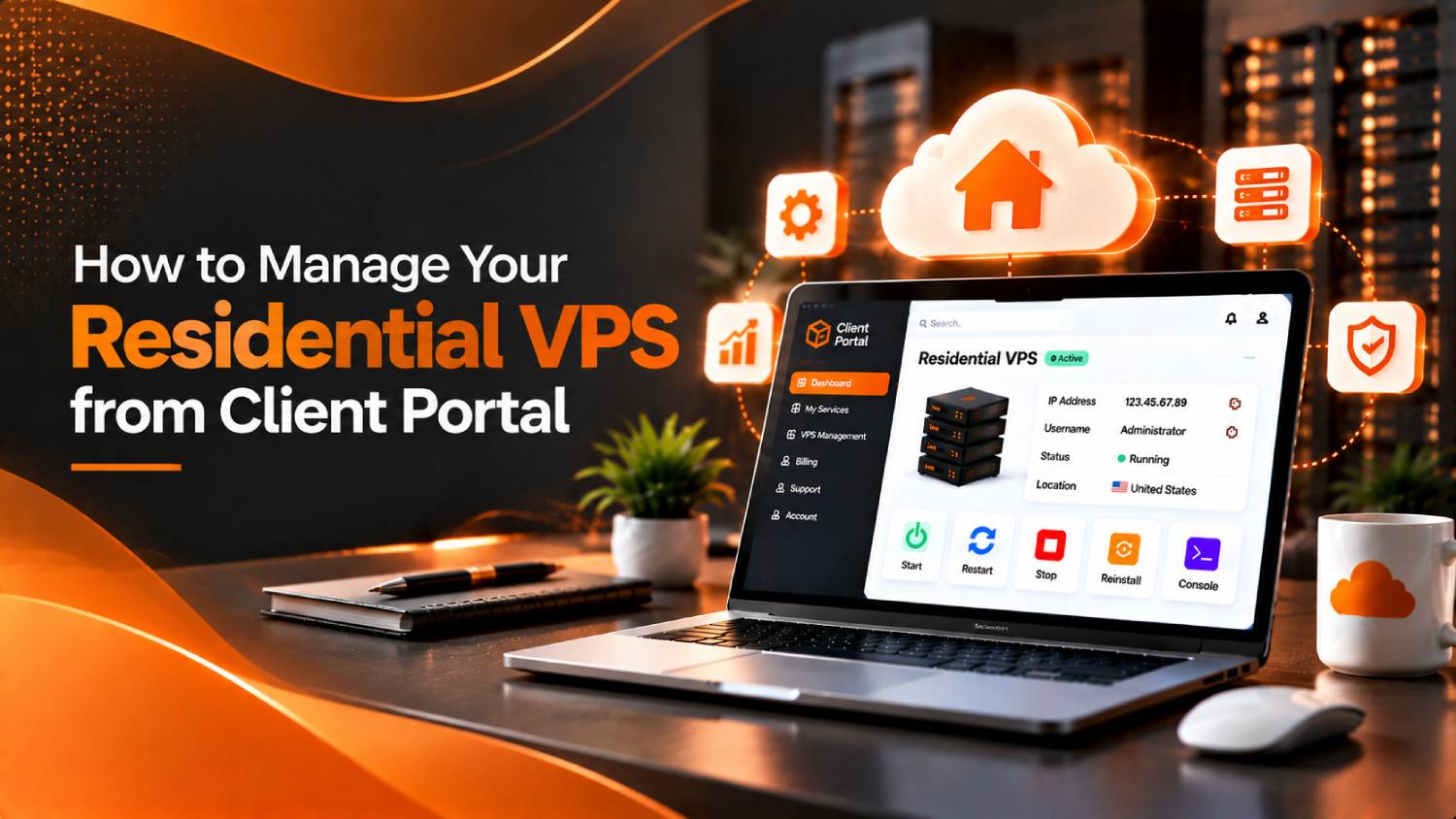
Go to the Client Area and click on the Residential VPS Dashboard tab at the top of the Panel to manage the Services.
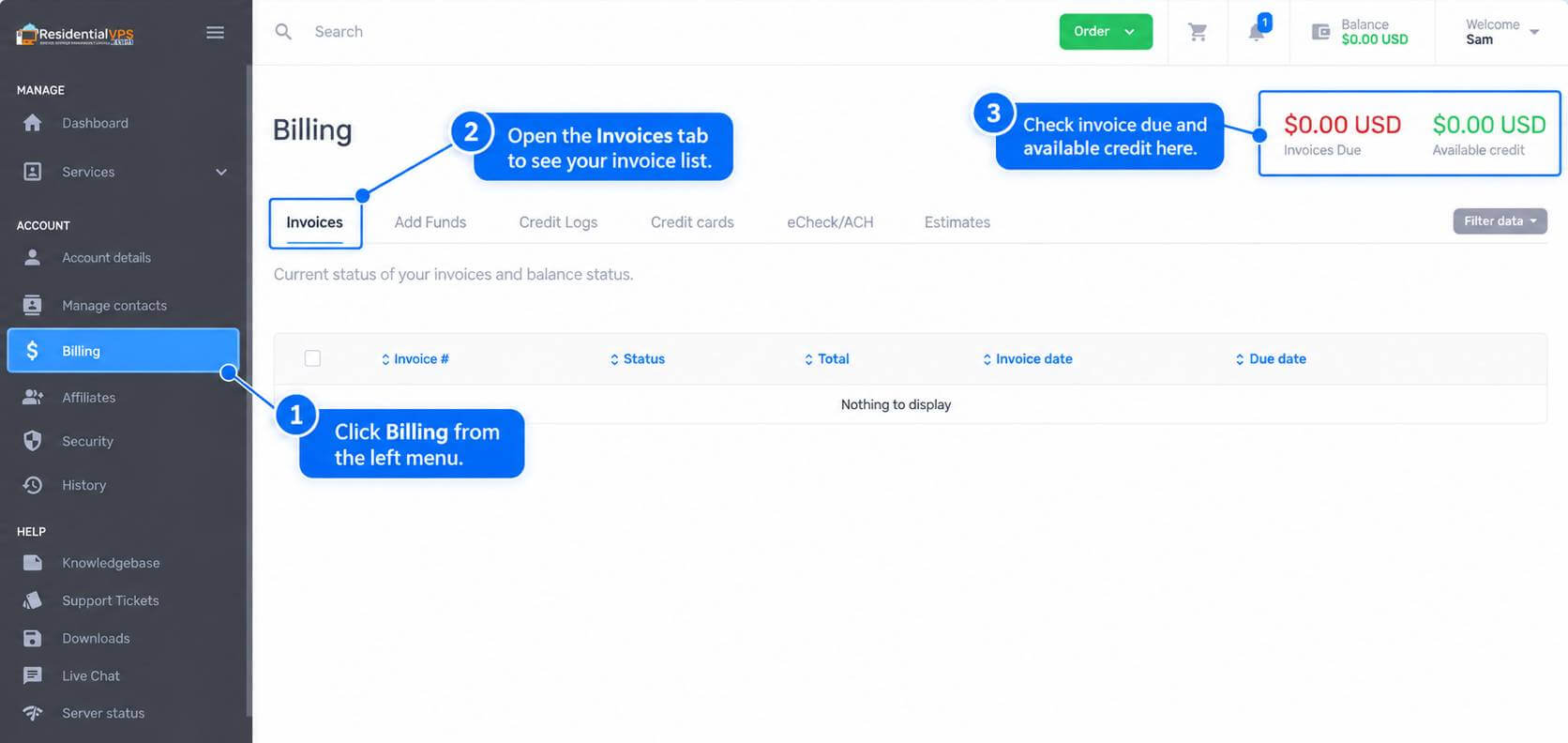
Step-2: Billing and Invoices
To view your Invoices, log in to your client area, go to Billing, and select Invoices to see your invoice list and payment status.
Step-3: Billing with Auto Renewal Option
To deactivate the Auto Renewal Option on your service, go to the Service Automation Panel, select More Options, and click on Service Auto Renewal Option.
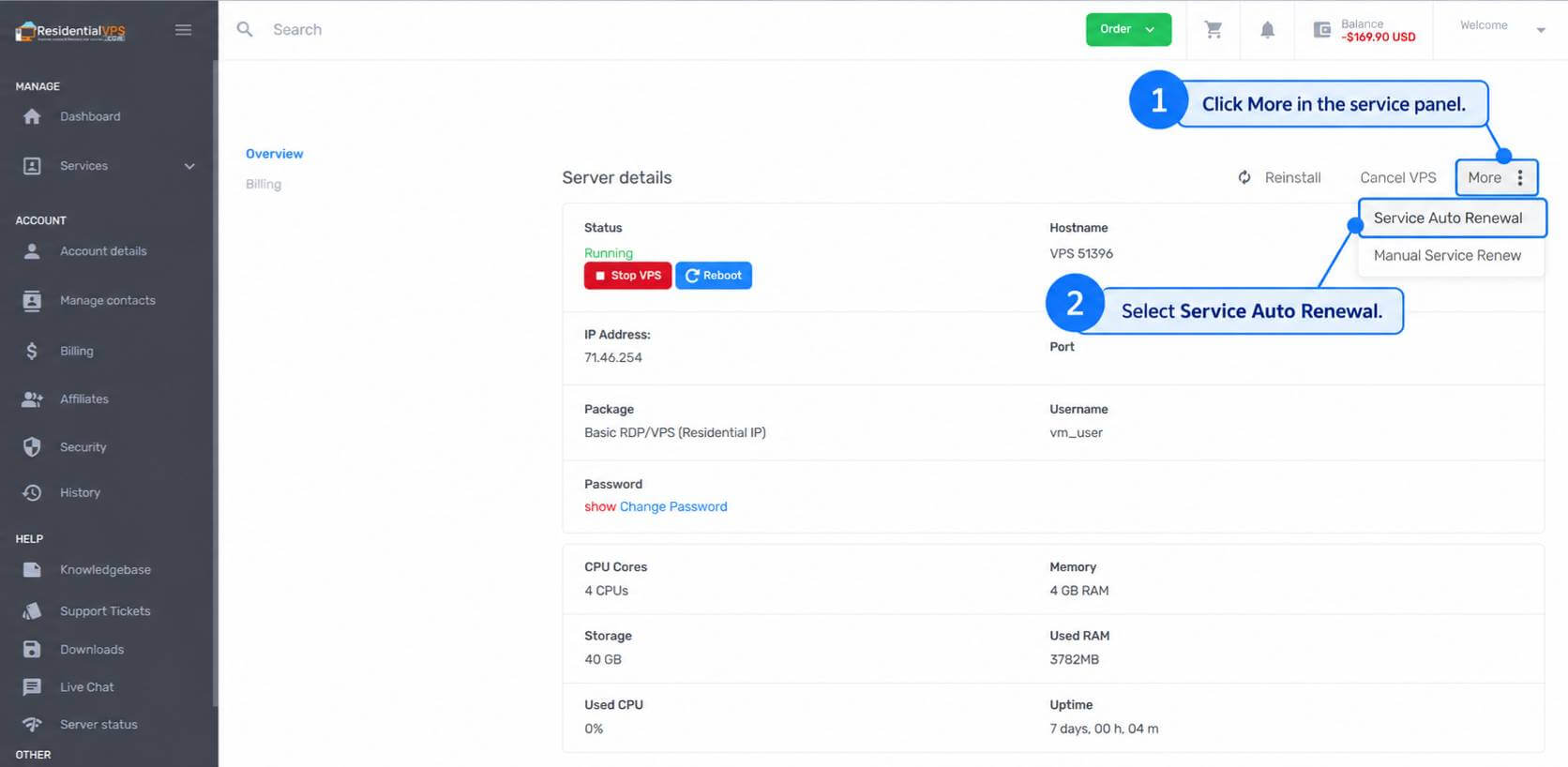
Choose the Service Auto Renewal Option and Enable or Disable it as you wish. Then choose the desired Payment Gateway Method for service payment and click the Save Changes button.
We hope that now you understand how to see your VPS Service Billing and Invoices from the client area.
Thank you for staying with Residential VPS!