Please follow the procedure mentioned below:
Step 1:
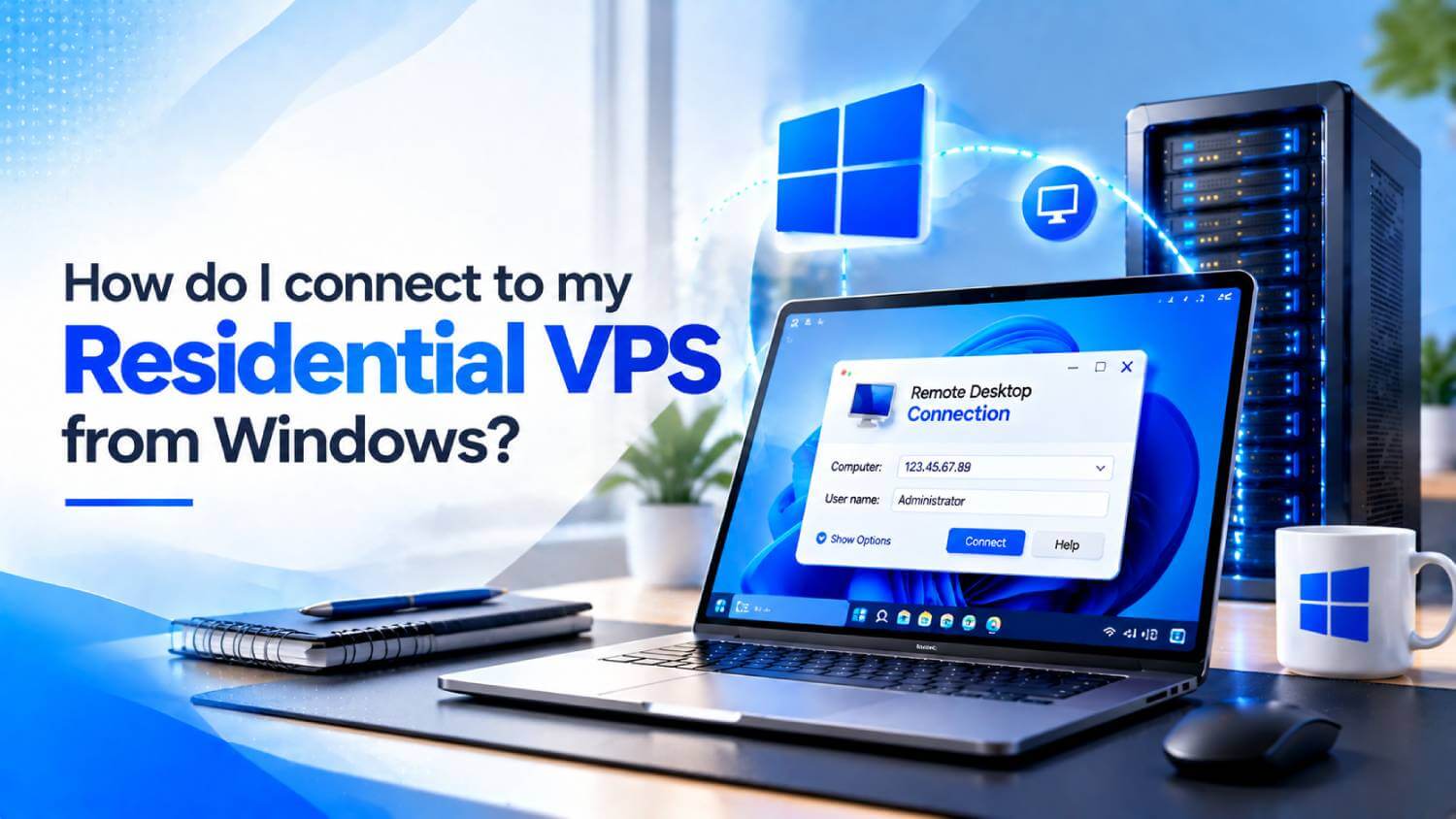
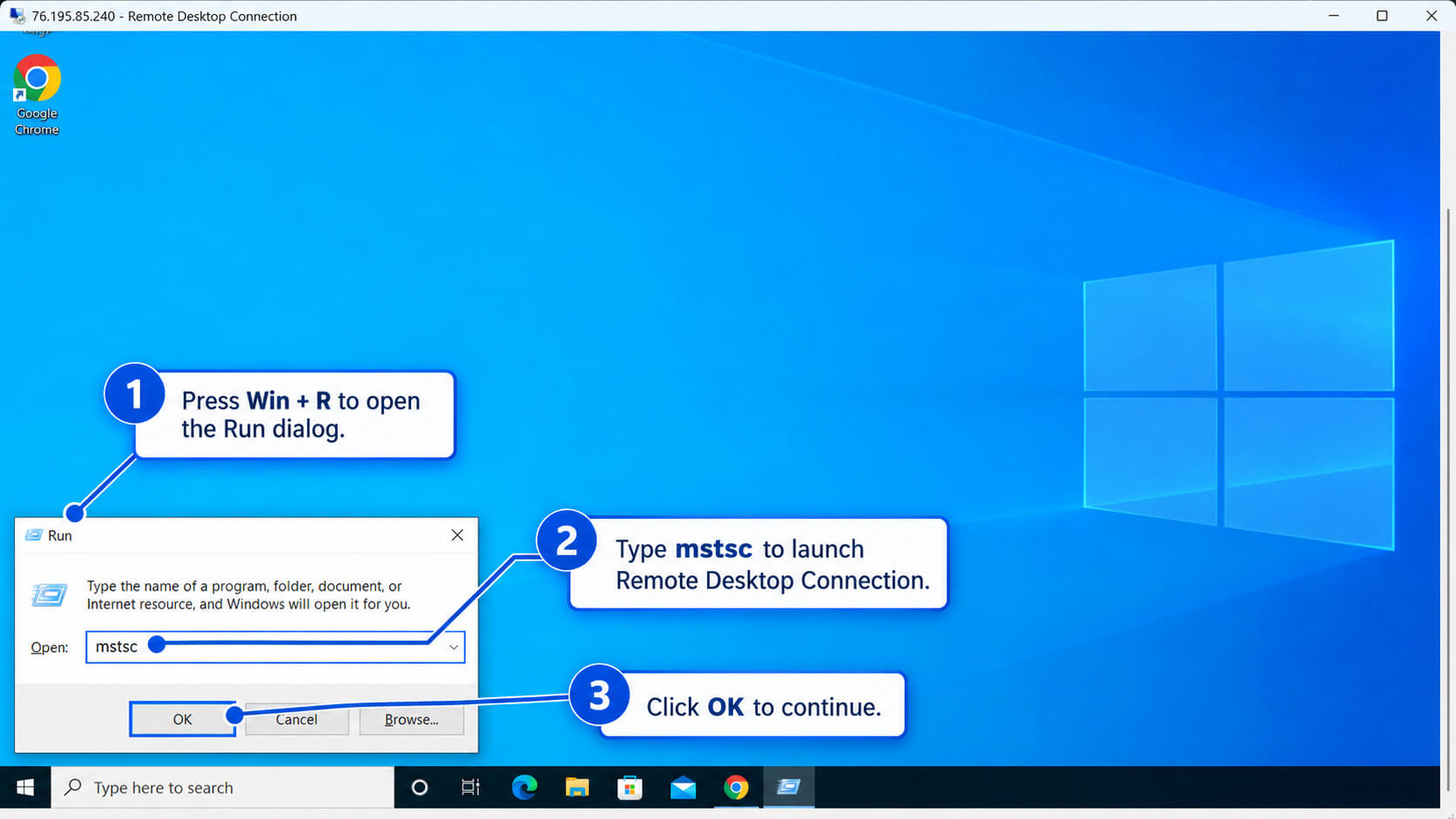
Go to “Remote Desktop Connection” or press "Win + R", then type “mstsc” in the search box.
Step 2:
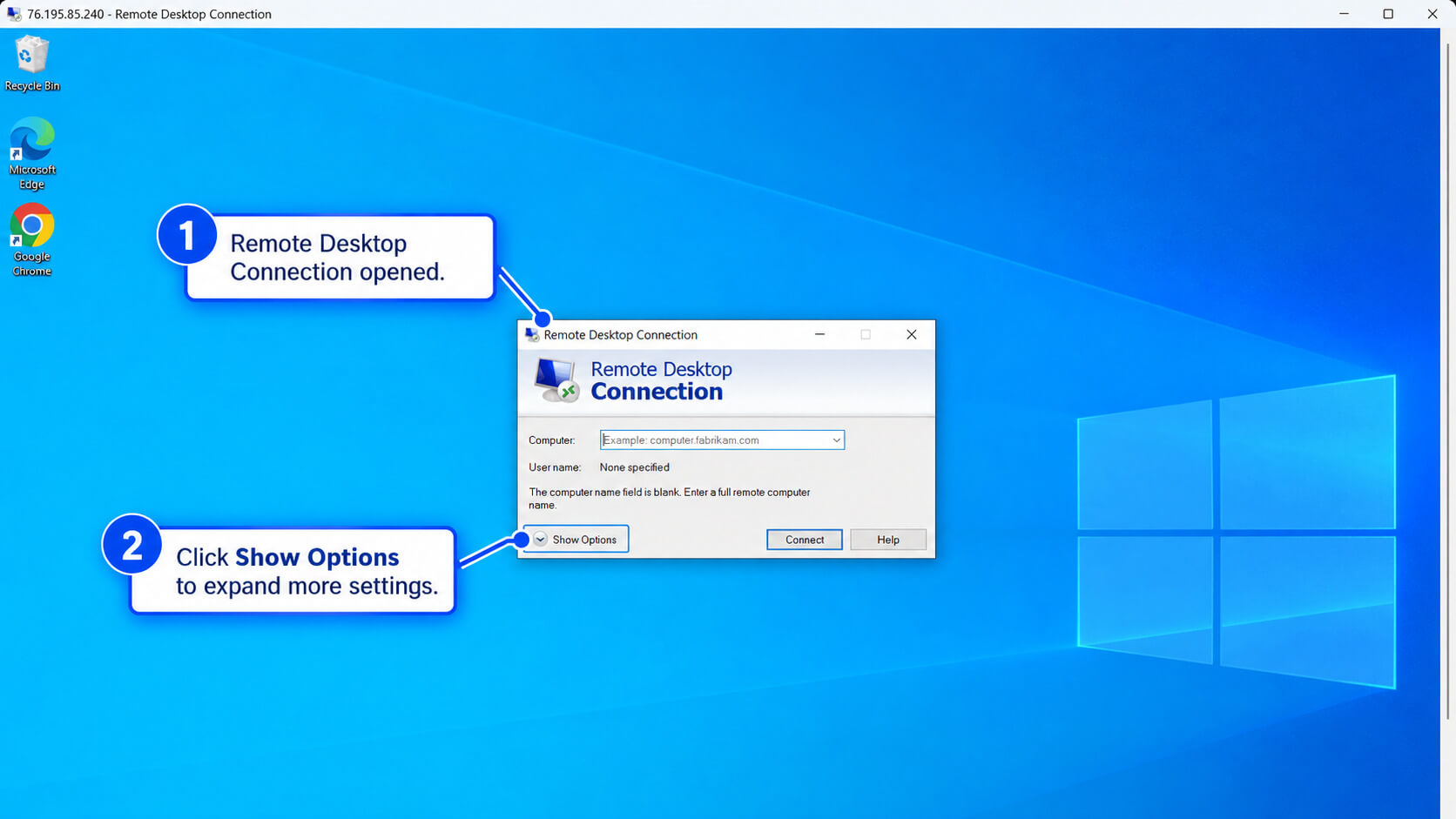
Click on “Show Options.”
Step 3:
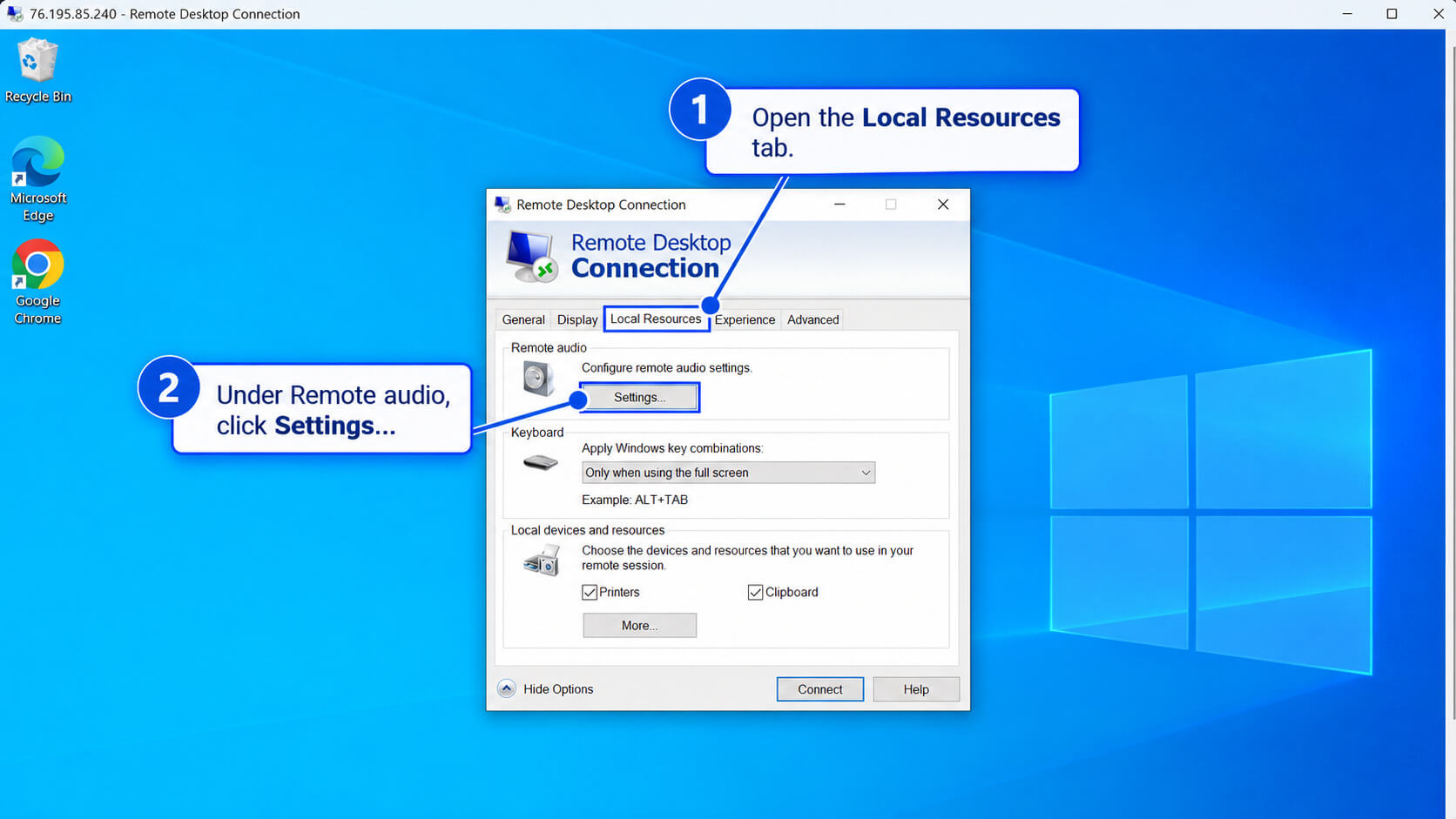
Then click → "Local Resources" → "Remote audio" and click on “Settings…”
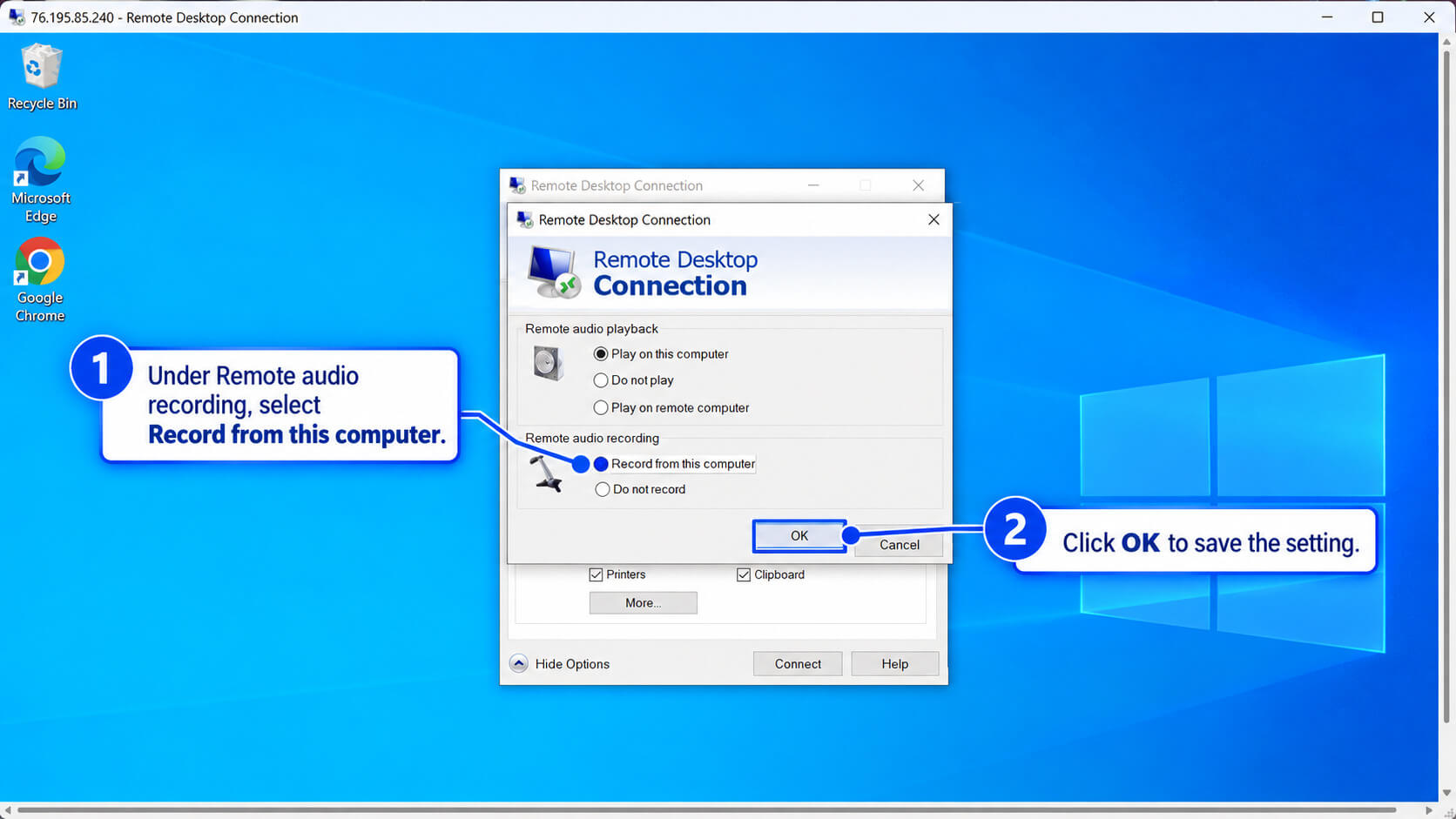
Step 4:
Enable the “Record from this computer” and click on “OK“, then connect to the remote desktop.
We hope you understand how to enable the microphone in Remote Desktop for Windows.
Thank you for staying with Residential VPS!