To connect with your residential VPS from a device with Windows Operating System, Please follow the instructions provided below:
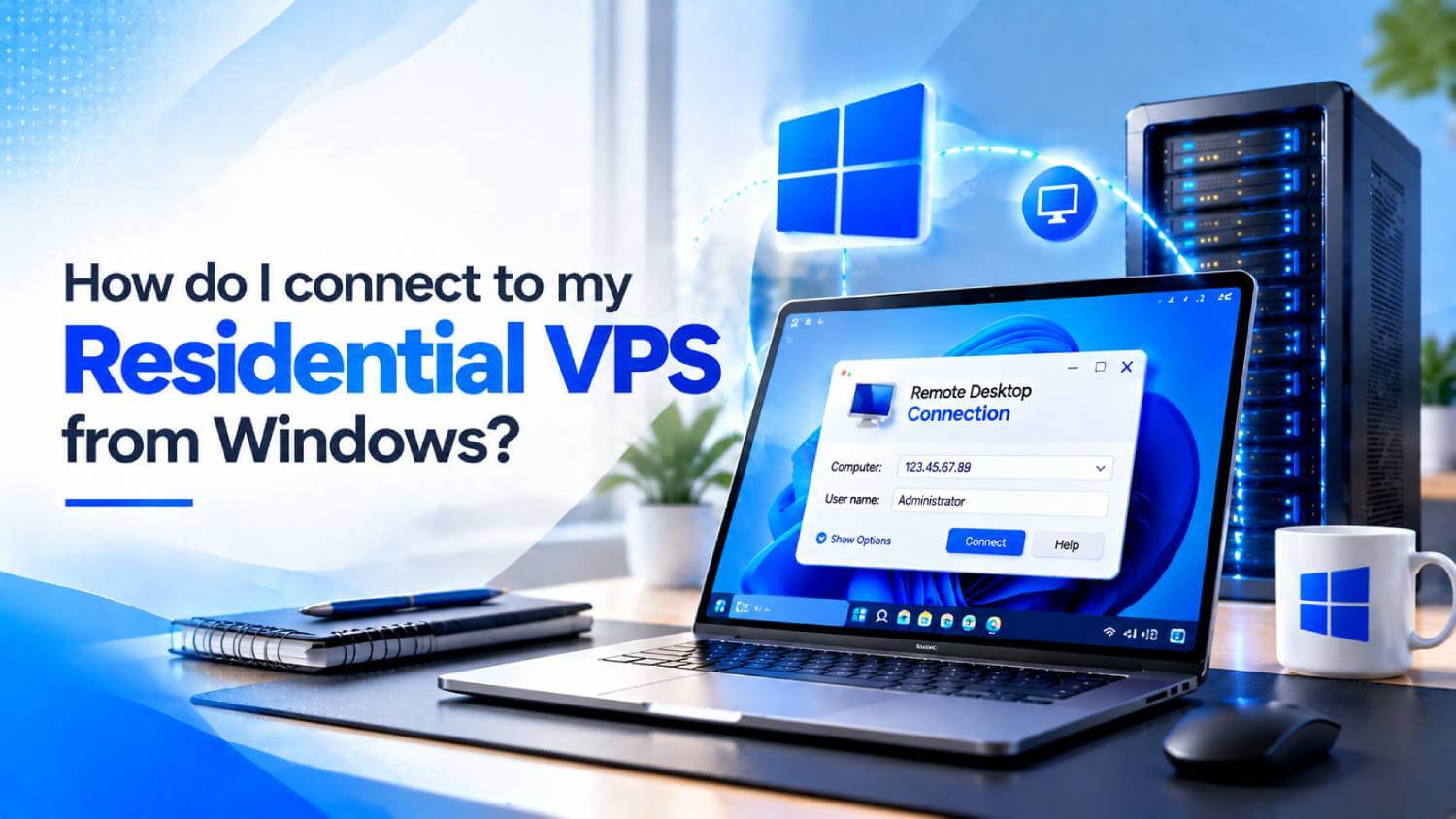
To connect with your VPS, you will need remote desktop client software. You don’t need to install any software, as Microsoft has built-in software named “Remote Desk Connection.”
Step 1:
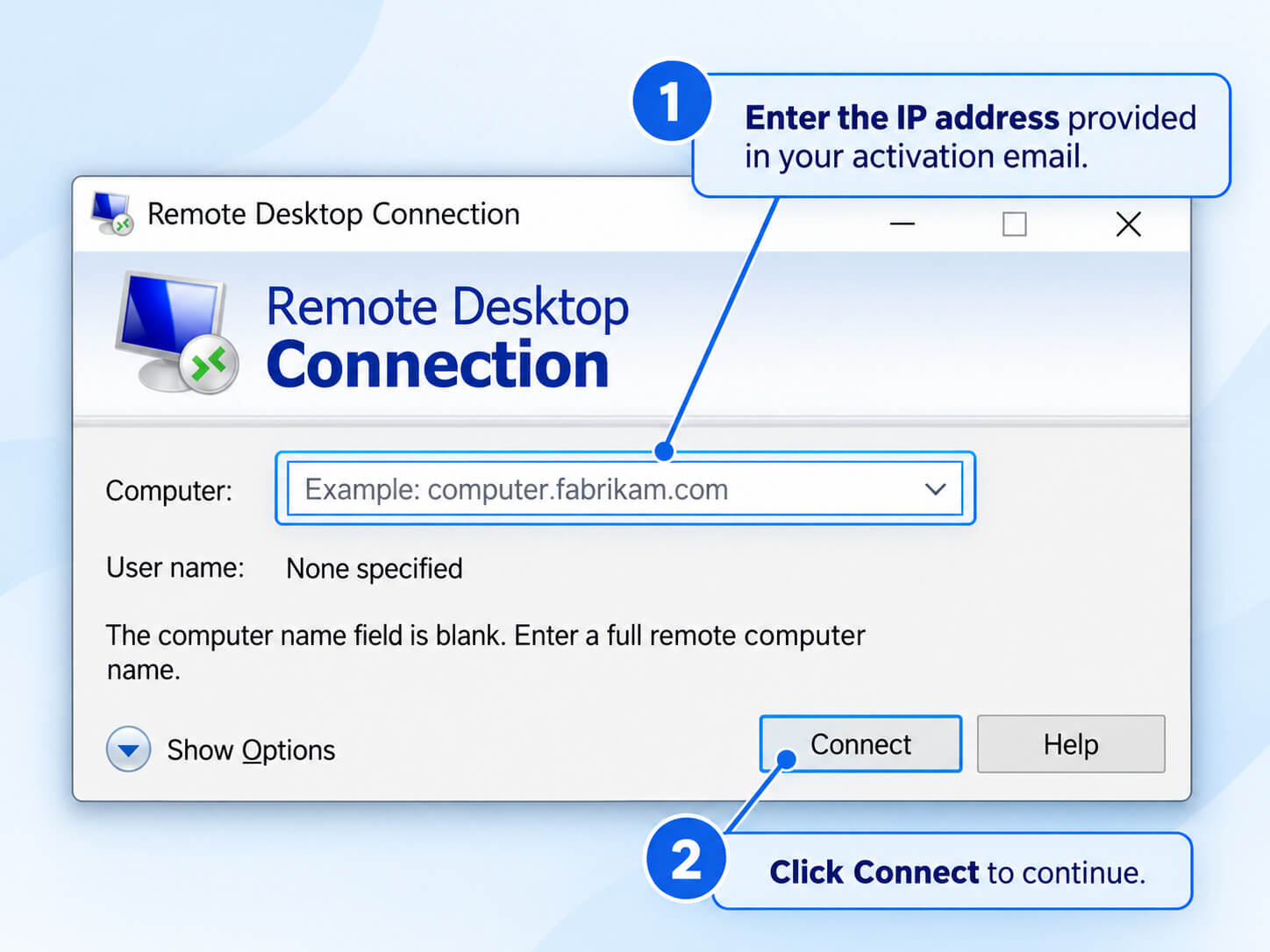
Click the Start button and search for Remote Desktop Connection, then open the application. Alternatively, press Windows + R on your keyboard, type mstsc, and press Enter. The Remote Desktop Connection window will open, allowing you to continue connecting to your Residential VPS.
Step 2:
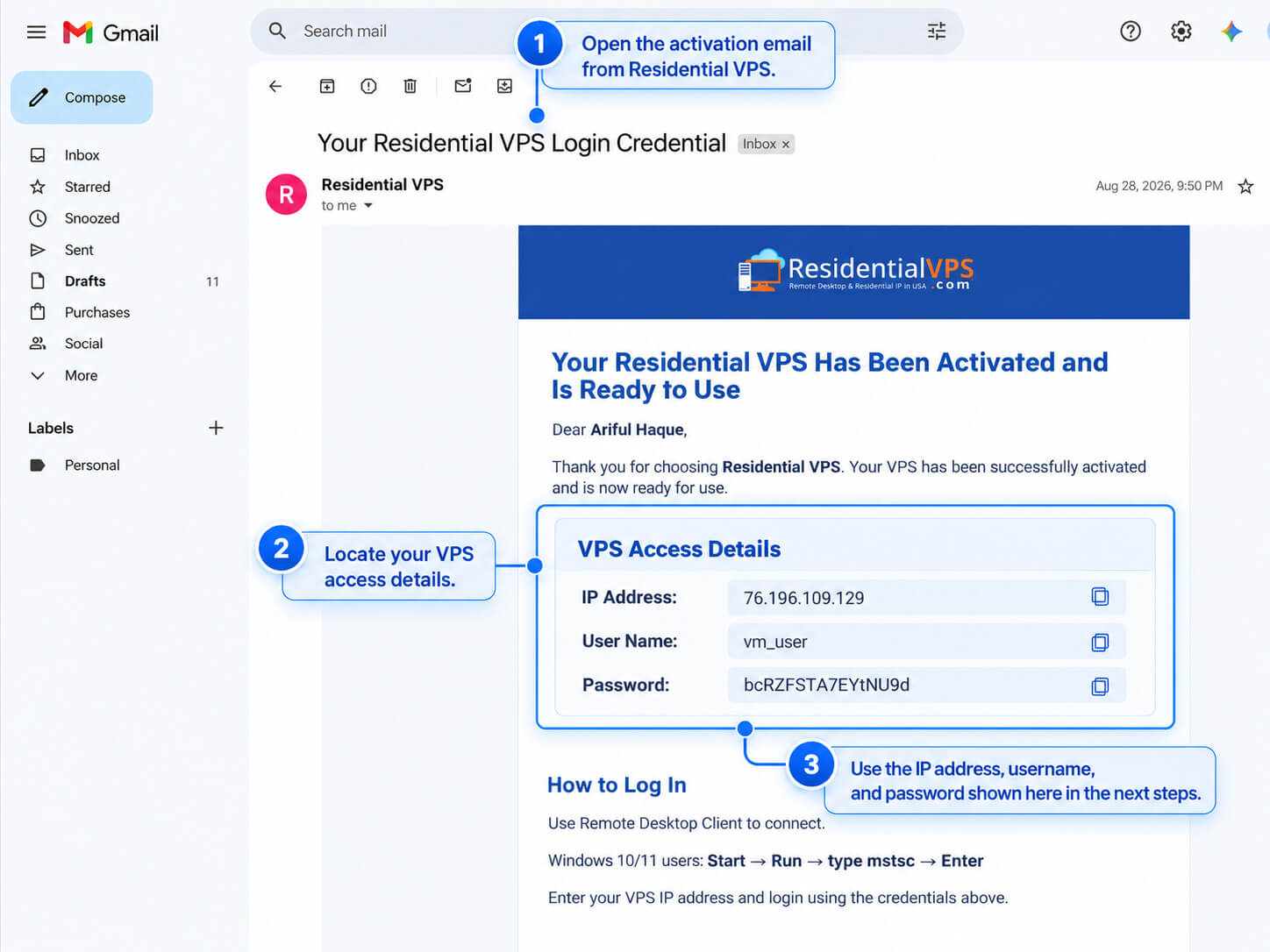
You need to enter the IP address we delivered to you by email and click the connect button.
Step 3:
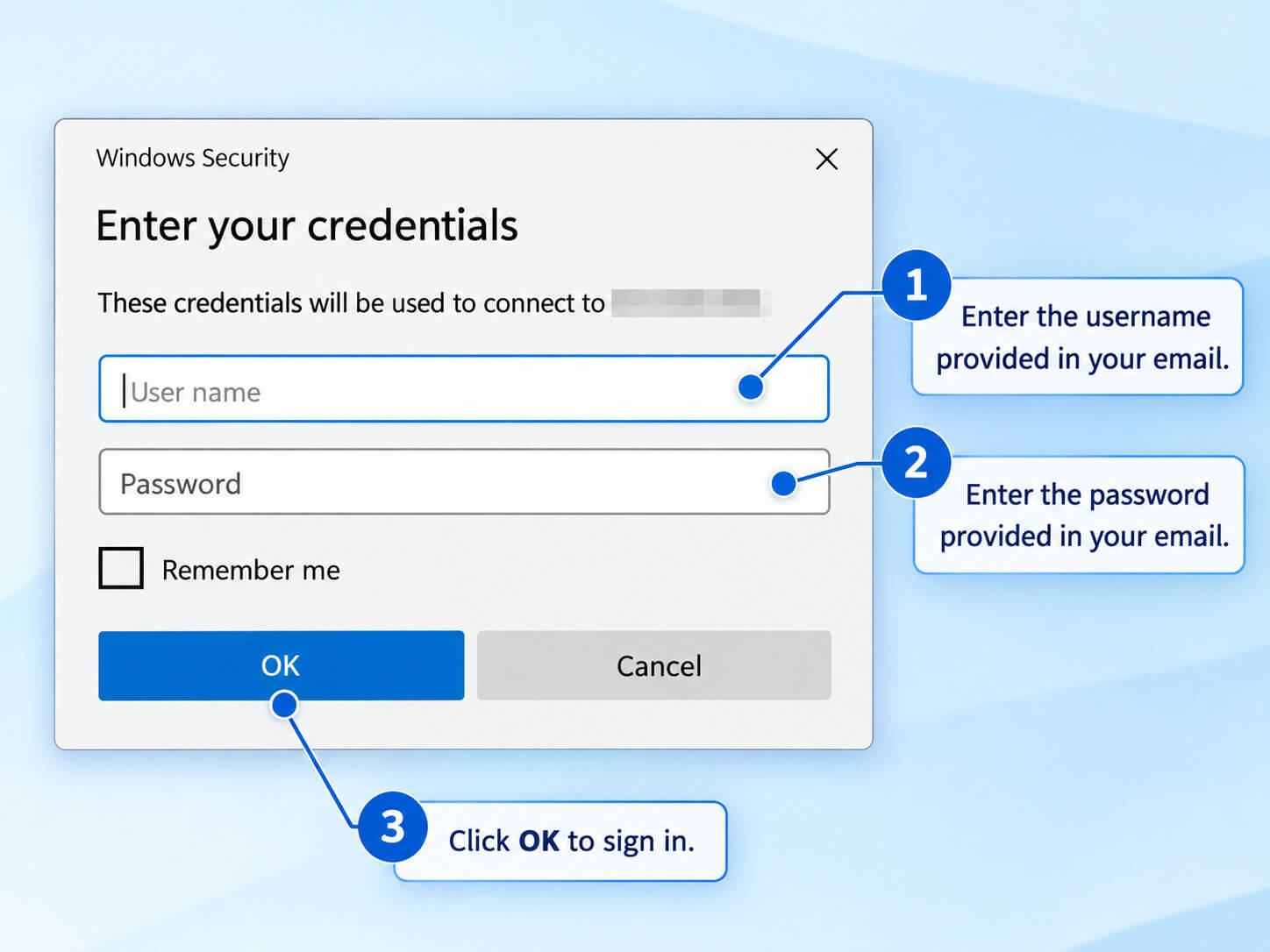
Now, enter the username and password we delivered to you by email, and hit enter.
Step 4:
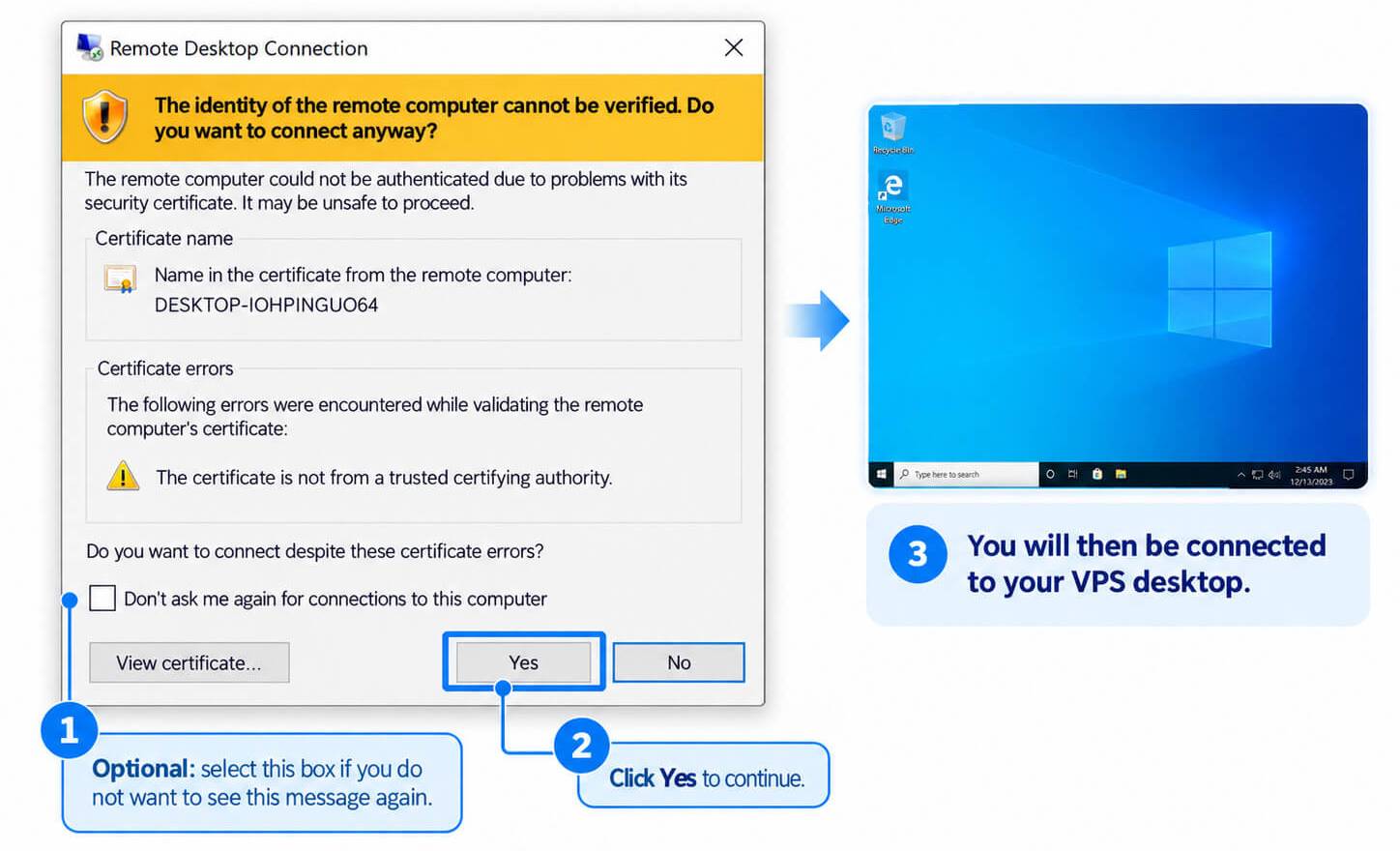
Next, you will see a dialog box; click yes.
Tick the box "Don't ask me again for connections to this computer" if you don't want to see the dialog box next time you log in.
Congratulations!
You have successfully logged into your residential VPS! Now you will get the desktop of your VPS!