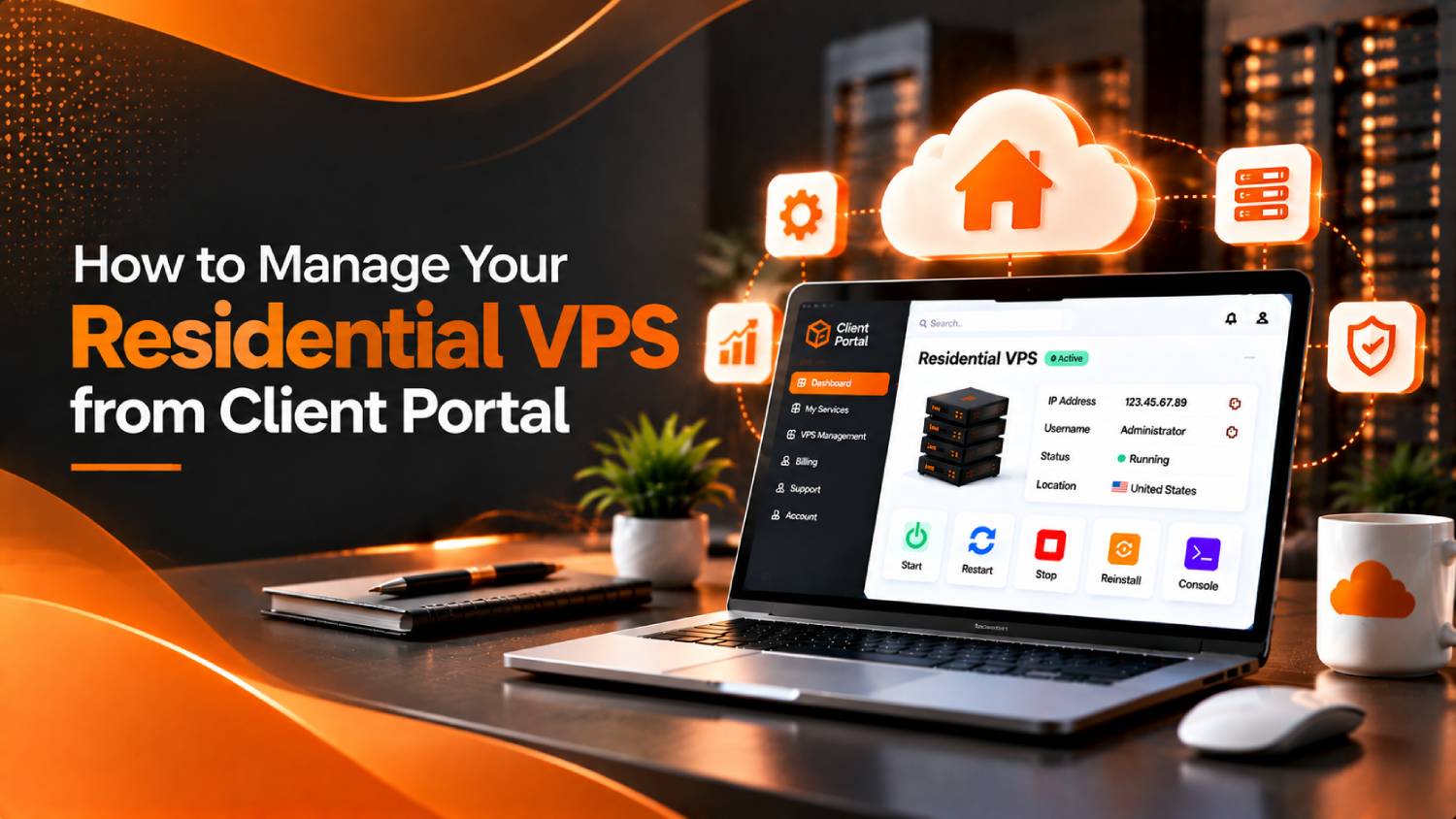
The Automation features of Residential VPS improve the quality of RDP-VPS Service as well as Support:
Everyone can start, stop, reinstall the operating system, and change the password of their VPS from their client area.
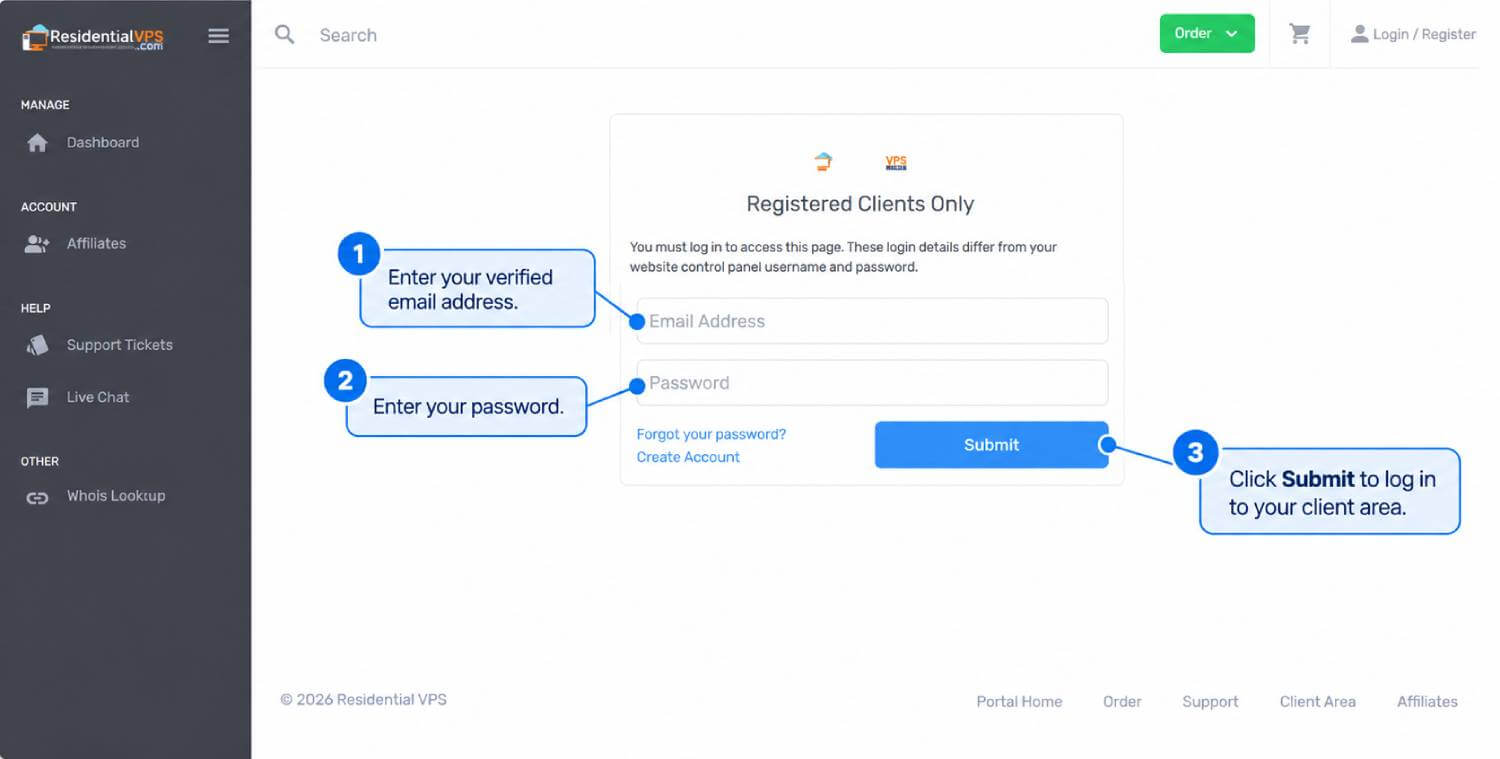
Step-1: Log in to the Client Dashboard
First, need to log in to the client area with your verified Credentials.
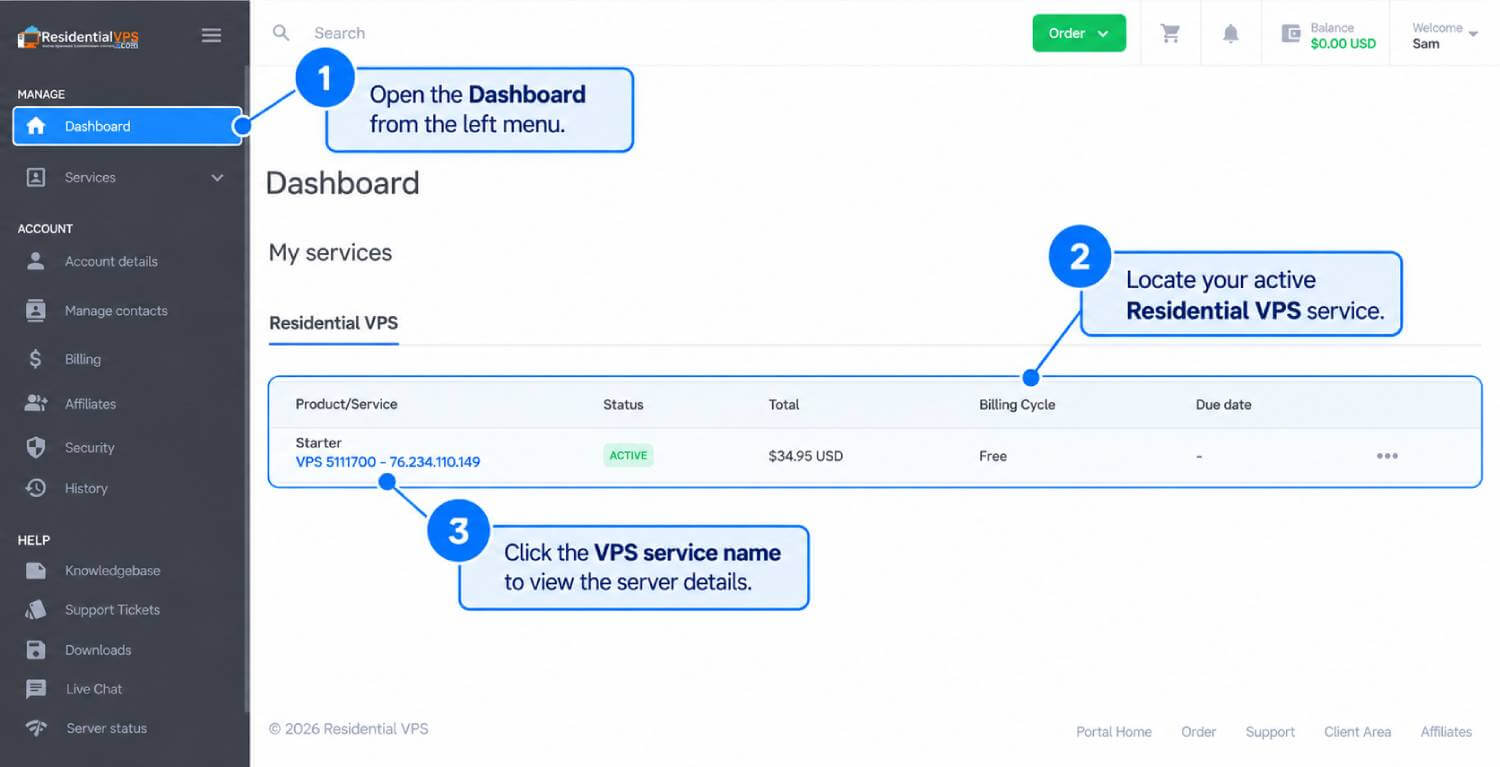
Step-2: Client Dashboard
Then click on the Residential VPS Dashboard tab at the top of the Panel to manage the Services.
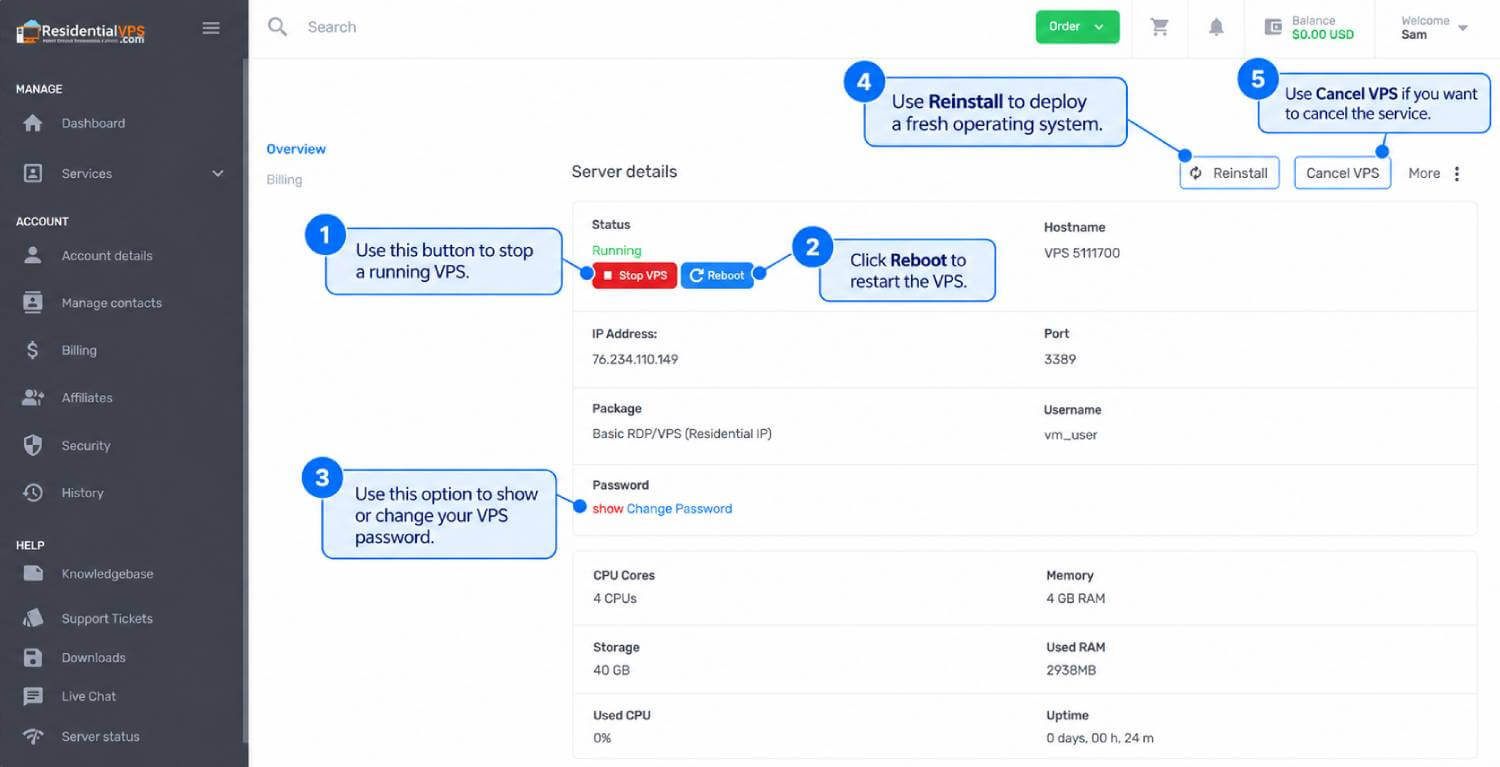
You can see some Action Buttons of Automation Feature on the Server Details, like Stop & Start, Reinstall, Change Password, Cancel VPS options, etc.
Step-3: Stop & Start your VPS
Stop-VPS: By clicking on this "Stop VPS" button, you can stop your running VPS.
Startup: By clicking on this "Start VPS" button, you can start or stop your VPS again.
Step-4: Reboot or Restart your VPS
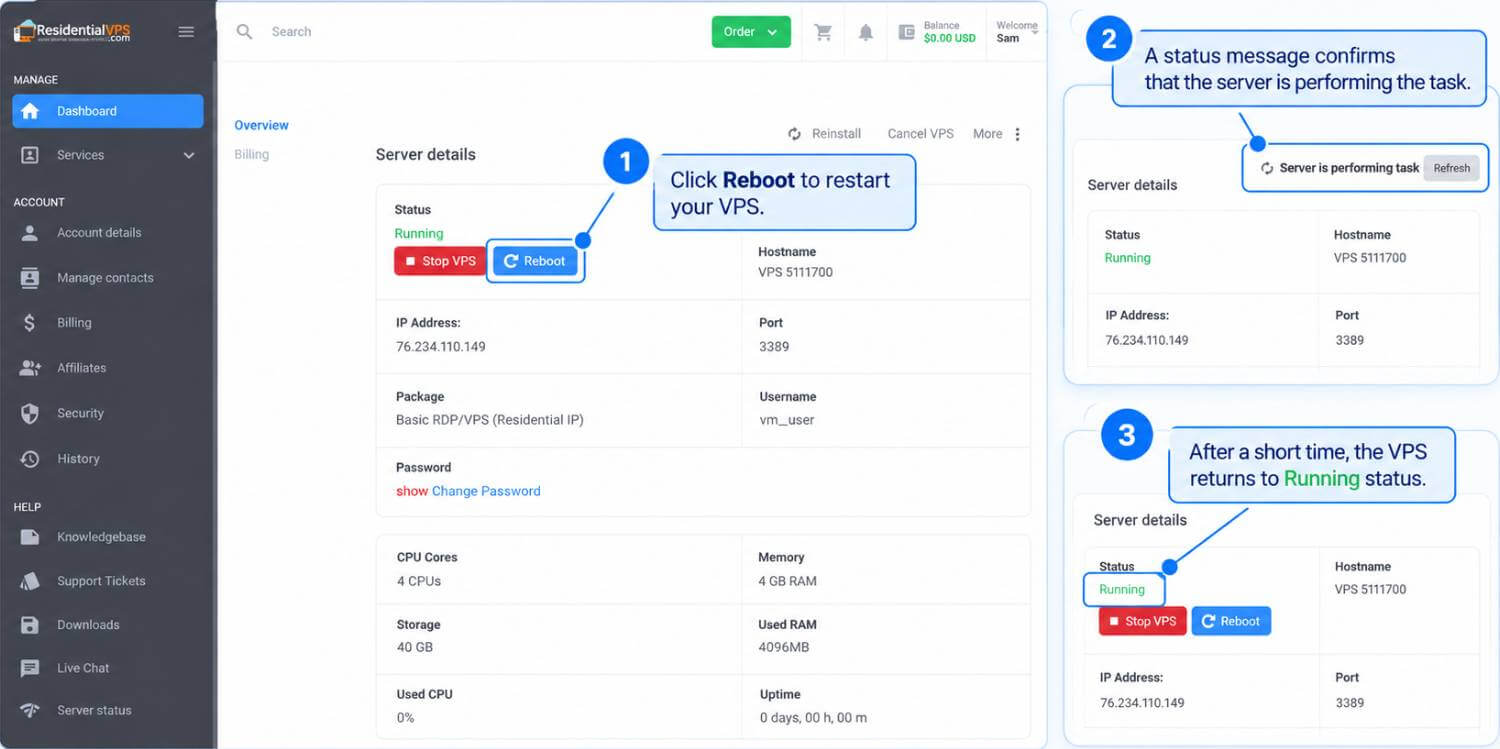
Reboot: To restart the Operating system of your VPS, click on the "Reboot" button.
Now, you can see the status. The "Server is performing the task". After a few seconds, VPS will return to Running Status.
Step-5: Reinstall or Rebuild your VPS
Rebuilt: To rebuild or reinstall your VPS, click on the "Reinstall" button.
You will see a dialog box asking you to select the OS. Windows is selected by default. Now, click on the "Re-Install VPS" button; it will take a few minutes.
After a while, you can see a Dialog box of "System reinstall" of your VPS has been reinstalled, and the status is "Rebuild".
Please reload the page after a while. Your VPS has been reinstalled, and the status is "Running".
Step-6: Change Password
In the Password section to change your VPS login password, click on the "Change Password" button, and you will see a dialog box.
In the new password box, write the new password you want to set as the login password, and hit the "Change Password" button.
Please wait for a few seconds, and your login password will be changed.
We hope that now you understand how you can manage your VPS and use the Automation Features by yourself from the client area.
Thank you for staying with Residential VPS!